Constrained peek so you can sanity-check the source material without leaving the site.
Figma Console MCP Server
Your design system as an API. Model Context Protocol server that bridges design and development—giving AI assistants complete access to Figma for extraction, creation, and debugging.
🆕 Import Once, Update Never — Plugin Bootloader Architecture: The Desktop Bridge plugin now dynamically loads its UI from the MCP server on every launch. Import the manifest once from ~/.figma-console-mcp/plugin/manifest.json and you're done forever — server updates, new tools, and bug fixes are delivered automatically. Plus: orphaned process cleanup, cross-file library components, and built-in housekeeping. See changelog →
What is this?
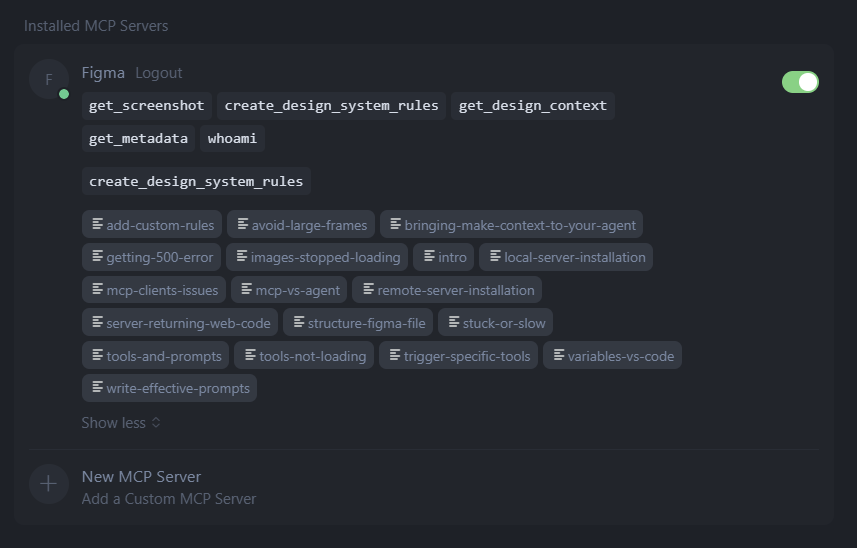
Figma Console MCP connects AI assistants (like Claude) to Figma, enabling:
- 🐛 Plugin debugging - Capture console logs, errors, and stack traces
- 📸 Visual debugging - Take screenshots for context
- 🎨 Design system extraction - Pull variables, components, and styles
- ✏️ Design creation - Create UI components, frames, and layouts directly in Figma
- 🔧 Variable management - Create, update, rename, and delete design tokens
- ⚡ Real-time monitoring - Watch logs as plugins execute
- ☁️ Cloud Write Relay - Web AI clients (Claude.ai, v0, Replit) can design in Figma via cloud pairing
- 🔄 Four ways to connect - Remote SSE, Cloud Mode, NPX, or Local Git
⚡ Quick Start
Choose Your Setup
First, decide what you want to do:
| I want to... | Setup Method | Time |
|---|
| Create and modify designs with AI | NPX Setup (Recommended) | ~10 min |
| Design from the web (Claude.ai, v0, Replit, Lovable) | Cloud Mode | ~5 min |
| Contribute to the project | Local Git Setup | ~15 min |
| Just explore my design data (read-only) | Remote SSE | ~2 min |
⚠️ Important: Capability Differences
| Capability | NPX / Local Git | Cloud Mode | Remote SSE |
|---|
| Read design data | ✅ | ✅ | ✅ |
| Create components & frames | ✅ | ✅ | ❌ |
| Edit existing designs | ✅ | ✅ | ❌ |
| Manage design tokens/variables | ✅ | ✅ | ❌ |
| Real-time monitoring (console, selection) | ✅ | ❌ | ❌ |
| Desktop Bridge plugin | ✅ | ✅ | ❌ |
| Requires Node.js | Yes | No | No |
| Total tools available | 63+ | 43 | 22 |
Bottom line: Remote SSE is read-only with ~38% of the tools. Cloud Mode unlocks write access from web AI clients without Node.js. NPX/Local Git gives the full 63+ tools with real-time monitoring.
🚀 NPX Setup (Recommended)
Best for: Designers who want full AI-assisted design capabilities.
What you get: All 63+ tools including design creation, variable management, and component instantiation.
Prerequisites
Step 1: Get Your Figma Token
- Go to Manage personal access tokens in Figma Help
- Follow the steps to create a new personal access token
- Enter description:
Figma Console MCP
- Copy the token — you won't see it again! (starts with
figd_)
Step 2: Configure Your MCP Client
Claude Code (CLI):
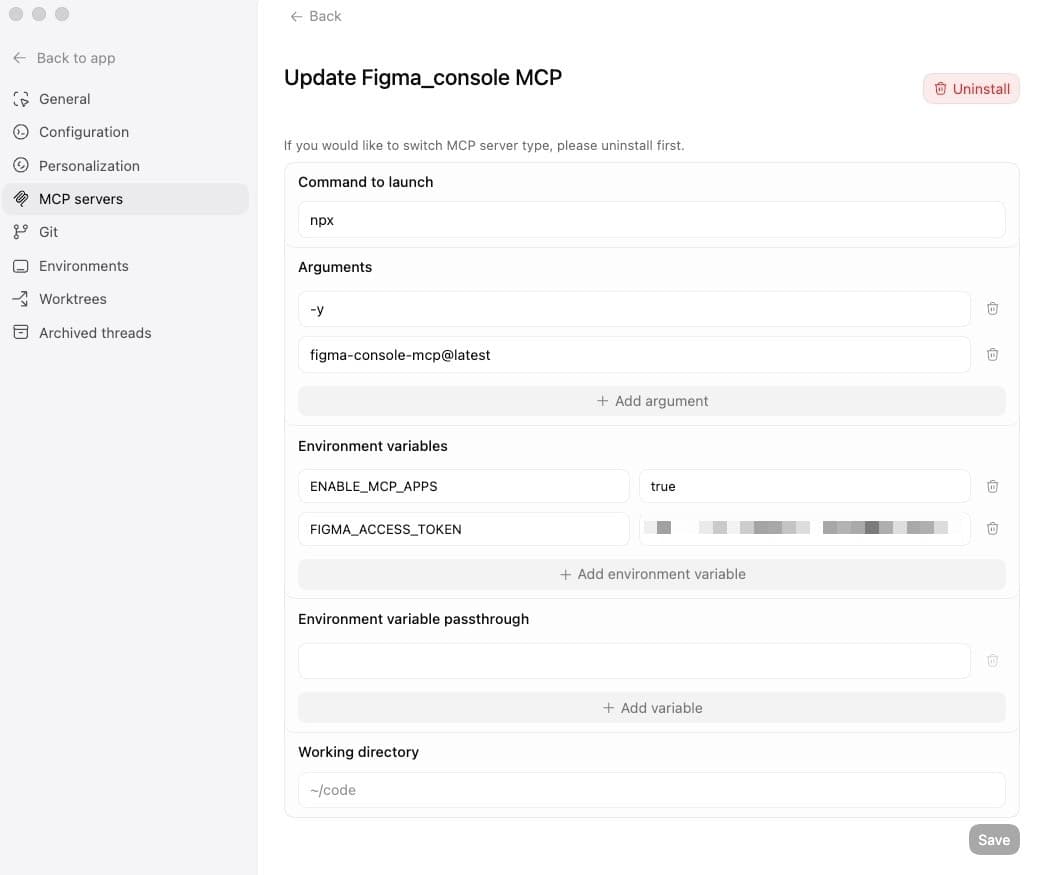
claude mcp add figma-console -s user -e FIGMA_ACCESS_TOKEN=figd_YOUR_TOKEN_HERE -e ENABLE_MCP_APPS=true -- npx -y figma-console-mcp@latest
Cursor / Windsurf / Claude Desktop:
Add to your MCP config file (see Where to find your config file below):
{
  "mcpServers": {
    "figma-console": {
      "command": "npx",
      "args": ["-y", "figma-console-mcp@latest"],
      "env": {
        "FIGMA_ACCESS_TOKEN": "figd_YOUR_TOKEN_HERE",
        "ENABLE_MCP_APPS": "true"
      }
    }
  }
}
📂 Where to Find Your Config File
If you're not sure where to put the JSON configuration above, here's where each app stores its MCP config:
| App | macOS | Windows |
|---|
| Claude Desktop | ~/Library/Application Support/Claude/claude_desktop_config.json | %APPDATA%\Claude\claude_desktop_config.json |
| Claude Code (CLI) | ~/.claude.json | %USERPROFILE%\.claude.json |
| Cursor | ~/.cursor/mcp.json | %USERPROFILE%\.cursor\mcp.json |
| Windsurf | ~/.codeium/windsurf/mcp_config.json | %USERPROFILE%\.codeium\windsurf\mcp_config.json |
Tip for designers: The ~ symbol means your home folder. On macOS, that's /Users/YourName/. On Windows, it's C:\Users\YourName\. You can open these files in any text editor — even TextEdit or Notepad.
Can't find the file? If it doesn't exist yet, create it. The app will pick it up on its next restart. Make sure the entire file is valid JSON (watch for missing commas or brackets).
Claude Code users: You can skip manual editing entirely. Just run the claude mcp add command above and it handles everything for you.
Step 3: Connect to Figma Desktop
Desktop Bridge Plugin:
- Open Figma Desktop normally (no special flags needed)
- Go to Plugins → Development → Import plugin from manifest...
- Select
~/.figma-console-mcp/plugin/manifest.json (stable path, auto-created by the MCP server)
- Run the plugin in your Figma file — the bootloader finds the MCP server and loads the latest UI automatically
One-time setup. The plugin uses a bootloader that dynamically loads fresh code from the MCP server — no need to re-import when the server updates.
Upgrading from v1.14 or earlier? Your existing plugin still works, but to get the bootloader benefits (no more re-importing), do one final re-import from ~/.figma-console-mcp/plugin/manifest.json. The path is created automatically when the MCP server starts. Run npx figma-console-mcp@latest --print-path to see it. After this one-time upgrade, you're done forever.
Step 4: Restart Your MCP Client
Restart your MCP client to load the new configuration.
Step 5: Test It!
Check Figma status
→ Should show connection status with active WebSocket transport
Create a simple frame with a blue background