Constrained peek so you can sanity-check the source material without leaving the site.
Figma MCP Server Guide
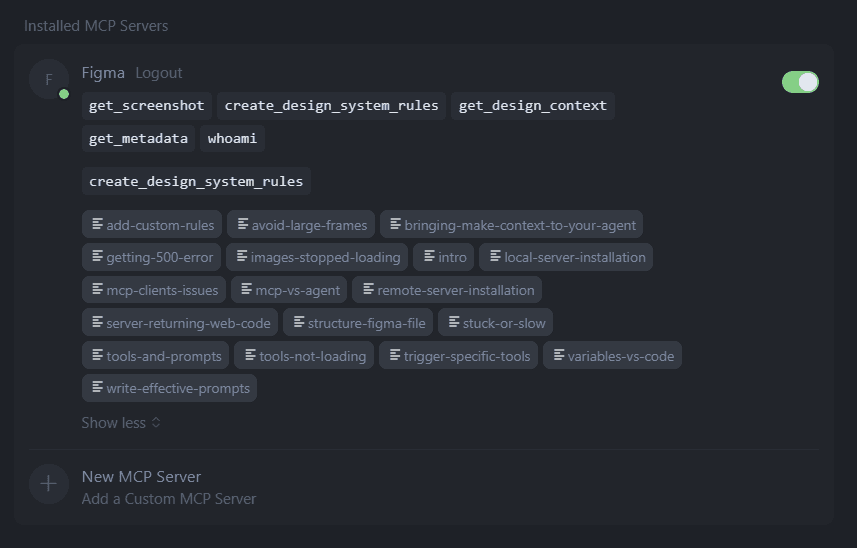
The Figma MCP server brings Figma directly into your workflow by providing important design information and context to AI agents generating code from Figma design files.
[!NOTE]
Rate limits apply to Figma MCP server tools that read data from Figma. Some tools, such as those that write to Figma files, are exempt from the rate limits.
<br><br>
Users on the Starter plan or with View or Collab seats on paid plans will be limited to up to 6 tool calls per month.
<br><br>
Users with a Dev or Full seat on the Professional, Organization, or Enterprise plans have per minute rate limits, which follow the same limits as the Tier 1 Figma REST API. As with Figma’s REST API, Figma reserves the right to change rate limits.
For the complete set of Figma MCP server docs, see our developer documentation.
Features
-
Generate code from selected frames
Select a Figma frame and turn it into code. Great for product teams building new flows or iterating on app features.
-
Extract design context
Pull in variables, components, and layout data directly into your IDE. This is especially useful for design systems and component-based workflows.
-
Code smarter with Code Connect
Boost output quality by reusing your actual components. Code Connect keeps your generated code consistent with your codebase.
Learn more about Code Connect →
-
Generate Figma designs from web pages (rolling out)
Capture, import, or convert a web page into a Figma design directly from your AI coding agent.
Installation & Setup
Connect to the Figma MCP server
Different MCP clients require slightly different setups. Follow the instructions below for your specific client to connect to the Figma MCP server.
VS Code
- Use the shortcut
⌘ Shift P to search for MCP:Add Server.
- Select
HTTP.
- Paste the server url
https://mcp.figma.com/mcp in the search bar. Then hit Enter.
- When you're prompted for a server ID, enter
figma.
- Select whether you want to add this server globally or only for the current workspace. Once confirmed, you'll see a configuration like this in your
mcp.json file:
{
  "servers": {
    "figma": {
      "type": "http",
      "url": "https://mcp.figma.com/mcp"
    }
  }
}
- Open the chat toolbar using
⌥⌘B or ⌃⌘I and switch to Agent mode.
- With the chat open, type in
#get_design_context to confirm that the Figma MCP server tools are available. If no tools are listed, restart VS Code.
[!NOTE]
You must have GitHub Copilot enabled on your account to use MCP in VS Code.
For more information, see VS Code's official documentation.
Cursor
The recommended way to set up the Figma MCP server in Cursor is by installing the Figma Plugin, which includes MCP server settings as well as Agent Skills for common workflows.
Install the plugin by typing the following command in Cursor's agent chat:
/add-plugin figma
The plugin includes:
- MCP server configuration for the Figma MCP server
- Skills for implementing designs, connecting components via Code Connect, and creating design system rules
- Rules for proper asset handling from the Figma MCP server
<details>
<summary>Manual setup</summary>
- Open Cursor → Settings → Cursor Settings.
- Go to the MCP tab.
- Click + Add new global MCP server.
- Enter the following configuration and save:
{
  "mcpServers": {
    "figma": {
      "url": "https://mcp.figma.com/mcp"
    }
  }
}
For more information, see Cursor's official documentation.
</details>
Claude Code
The recommended way to set up the Figma MCP server in Claude Code is by installing the Figma Plugin, which includes MCP server settings as well as Agent Skills for common workflows.
Run the following command to install the plugin from Anthropic's official plugin marketplace.
claude plugin install figma@claude-plugins-official
Learn more about Anthropic's Claude Code Plugins and Agent Skills.
<details>
<summary>Manual setup</summary>
- Open your terminal and run:
claude mcp add --transport http figma https://mcp.figma.com/mcp
- Use the following commands to check MCP settings and manage servers:
- List all configured servers
claude mcp list
- Get details for a specific server
claude mcp get my-server
- Remove a server
claude mcp remove my-server